 chmonitor
Settings
Configure alert thresholds, browser connections, AI agent options, UI theme, and workspace navigation from the in-app Settings dialog, or via server-side environment variables.
The in-app Settings page (feature id: settings, route /settings) lets
operators configure alert thresholds, manage browser connections, tune agent
session options, and change the UI theme — without redeploying.
To reach it, open the dashboard and click the Settings gear (or ⌘,).
Workspace / Navigation lives in that dialog, not on the /settings
system.settings table page.
Local to this browser
Workspace / Navigation (role + hide list + pins) lives in this browser. It does not change anyone else's sidebar.
What you can configure in-app
| Setting area | What you control |
|---|---|
| Alert thresholds | CPU %, memory %, replication lag limits for health sweep alerts |
| Browser connections | Add/remove personal ClickHouse connections stored in the browser |
| Agent session | Model picker, token/cost display, conversation store selection |
| Theme | Light / dark / system |
| Workspace / Navigation | Role preset, hide/show pages, pin favorites; local to this browser |
Settings changes made in-app are stored per browser session or in the configured conversation store. They do not affect server-side environment variables.
Workspace / Navigation
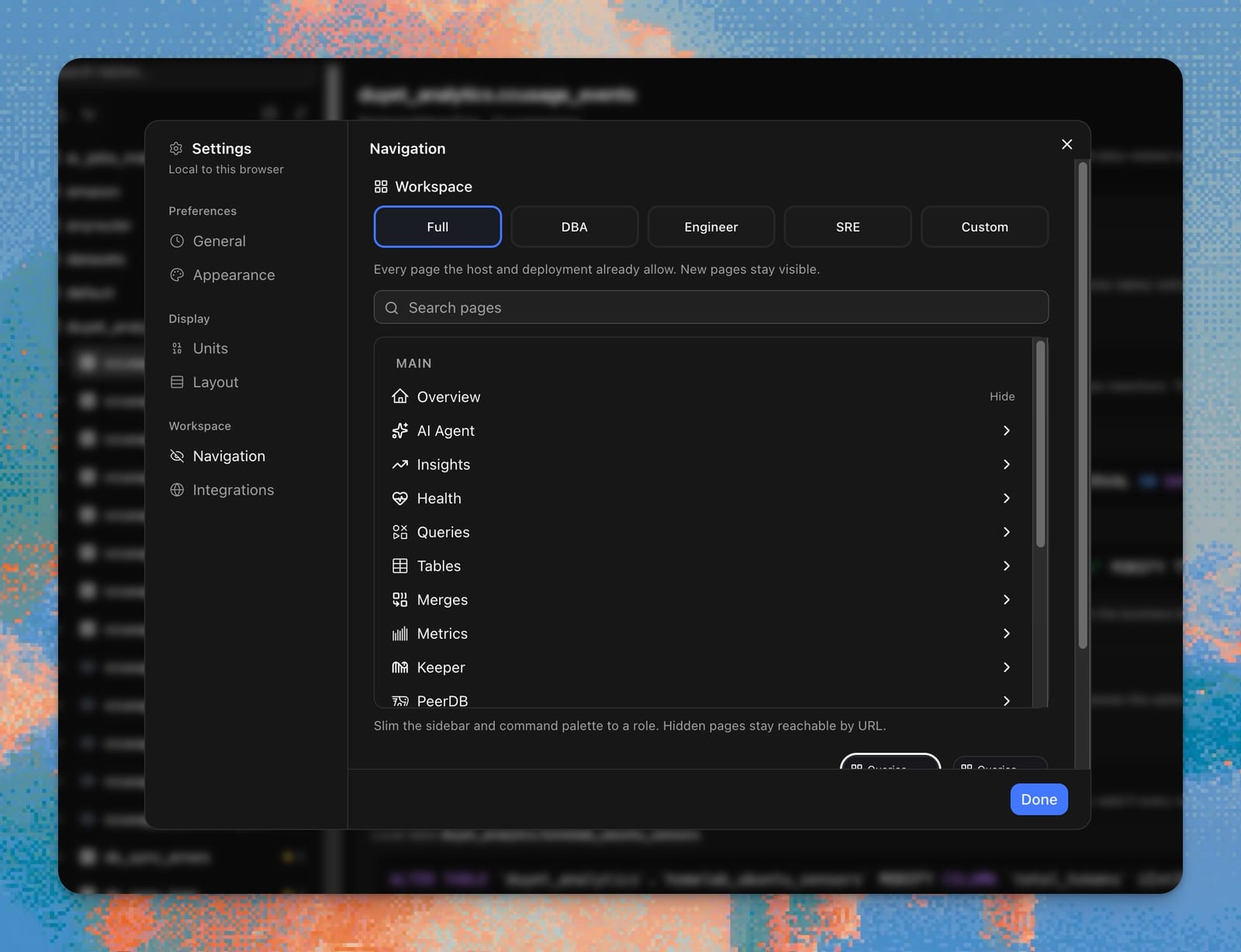
Open Settings → Workspace → Navigation. The dialog header says Local to this browser — the role and hide list live in this browser, not on the server, and they do not change anyone else's sidebar.
Narrative walkthrough: A DBA, an SRE, and an engineer should not share a sidebar.
Roles
| Preset | Groups kept |
|---|---|
| Full | Every page the host and deployment already allow. New pages stay visible. |
| DBA | Overview, Tools, Queries, Tables, Merges, Metrics, Keeper, Security, Logs, Cluster, System |
| Engineer | Overview, Tools, Queries, Tables, Insights, AI Agent |
| SRE | Overview, Tools, Health, Insights, Queries, Tables, System, Operations, Metrics, Logs |
| Custom | Start from a role, then hide extra leaves |
Picking a role remounts the Settings tree collapsed. Expand only what you care about; search filters the tree. The pill flips to Custom only when Hide/Show on a leaf diverges from that role's hide list. Collapsing a parent does not count.
Footer About is not hideable. The Settings gear and host switcher are never filtered. Hidden pages stay reachable by URL; the sidebar and command palette drop them.
Hide, pin, restore
In Settings, leaves have Hide / Show. Hidden rows stay in the tree, dimmed.
In the sidebar, hover a leaf: Hide sits next to Pin. A toast offers Undo and Open Navigation.
Restore always lives at Settings → Workspace → Navigation.
Pin adds the page to Favorites at the top of the sidebar; drag to reorder. Pins are local to this browser too.
Theme, units, and layout stay on the other Settings tabs (local chrome). The role plus hide list is the menu IA. Workspace visibility is applied last — permission, cloud, and engine gates still win.
Tools
Tools is the last Main group: SQL Console, Data Explorer, Explain, Advisor (recommend-only; never applies DDL), Chart Builder, Schema Compare, Settings Diff. AI Agent stays its own top-level group. Postgres hosts do not see Tools (ClickHouse-family only). DBA, Engineer, and SRE presets all keep Tools.
Conversation history (agent settings sidebar)
The agent settings sidebar includes a read-only "Conversation History" section that names the backend currently storing agent chats. The backend is chosen at deploy time by environment variables — it cannot be switched from the UI. Labels you may see:
| Label | Meaning |
|---|---|
| Browser | History stays in localStorage (server persistence is off) |
| AgentState | Managed/self-hosted AgentState service; when AI enrichment is on, the chat also suggests follow-up questions |
| D1 | Cloudflare D1 (SQLite) database |
| Postgres | A PostgreSQL-compatible database |
To change the active backend, set the relevant server-side env vars and redeploy. See Conversation history backends in the AI Agent docs for the full env-var reference and setup steps.
Gating or disabling Settings
By default, the Settings page is public — any visitor can open it. To restrict or remove it, use env vars or a config file.
# Require authentication to access Settings
CHM_FEATURE_SETTINGS_ACCESS=authenticated

# Disable the Settings page entirely (removes it from nav)
CHM_FEATURE_SETTINGS_ENABLED=false[features.settings]
access = "authenticated"Server-side configuration
Most operational configuration is done through environment variables, not the in-app Settings UI. The key variables, grouped by area:
Related
Configuration
How chmonitor reads settings and which category lives where.
Environment variables
Full list of every variable, grouped by category.
Feature permissions
Full reference for CHM_FEATURE_* env.
Authentication
Setting up Clerk, Cloudflare Access, or proxy auth.
AI agent
Agent configuration and conversation store options.
Install & configure
Platform-specific deployment with all env vars.
A DBA, an SRE, and an engineer should not share a sidebar
Workspace roles, hide/pin, and the Tools menu — local to this browser.